
The document portal is easy to use. Receipts, invoices and bank statements go to one place as they are, and nothing needs sorting.
The document portal is a web service where you send your receipts, invoices and bank statements as they are. You photograph a receipt with your phone or send a file, and your bookkeeping takes care of the rest. With your own AI agent, you don't even need to log in.
The portal is available in English. In this guide, the buttons are named in bold as they appear in the English portal.
An email address and a password are all you need.
Your accountant sends you an invitation link. Through the link you create a password of at least 12 characters. A long sentence that is easy to remember is better than a short, complicated password.
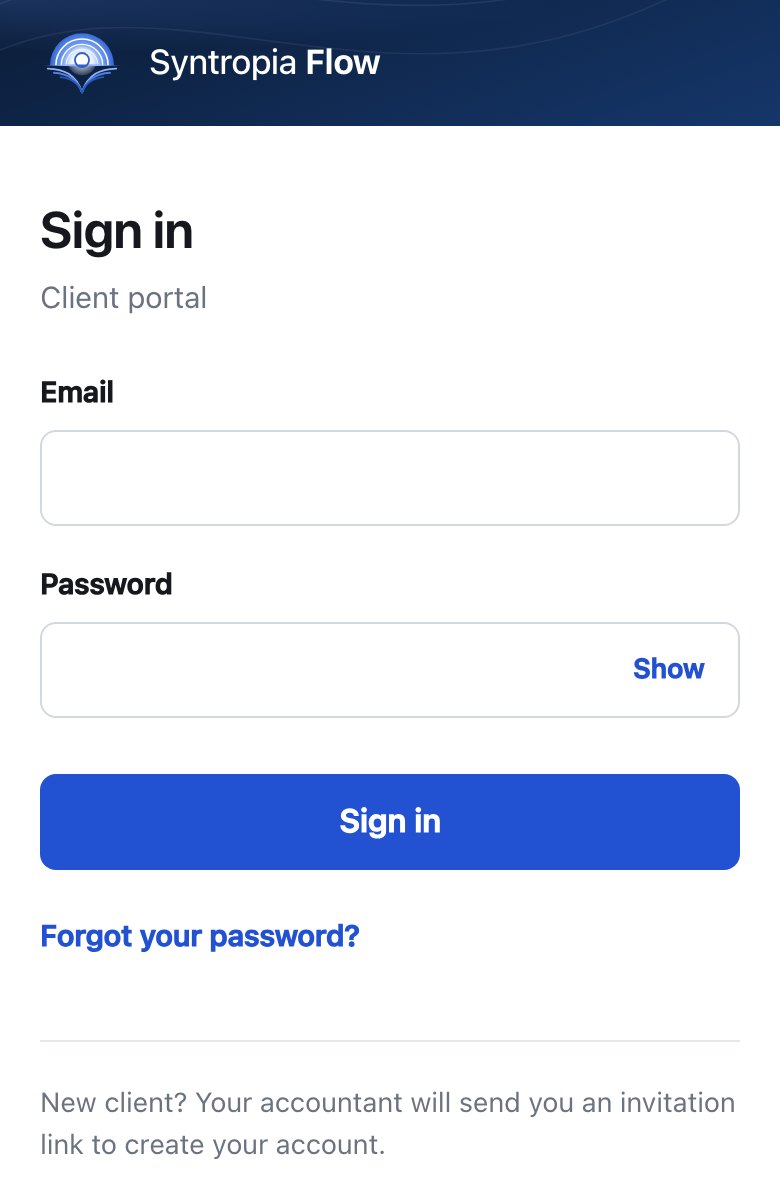
The invitation works only once. After that, you log in at aineisto.syntropia.fi with the Sign in button.
If you forget your password, ask your accountant for a new invitation link and create a new password with it.
All documents in one place. Nothing needs sorting.
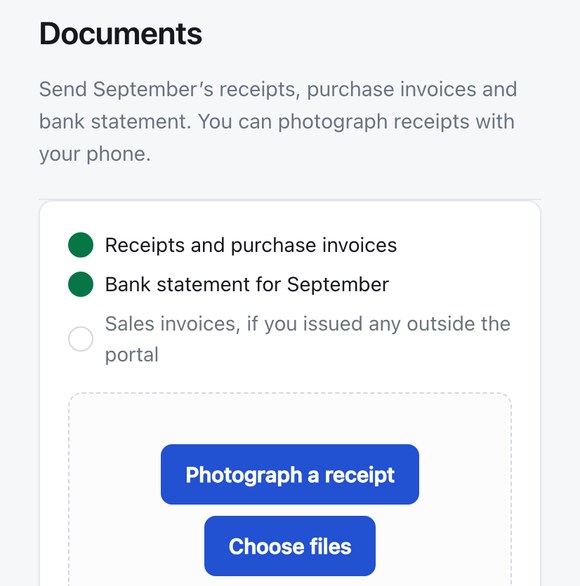
- Open Documents and choose your files with the Choose files button. On a computer, you can also drag the files into the box that says Drag files here. Finally, press Send files.
- On a phone, you can also photograph a receipt directly with the Photograph a receipt button.
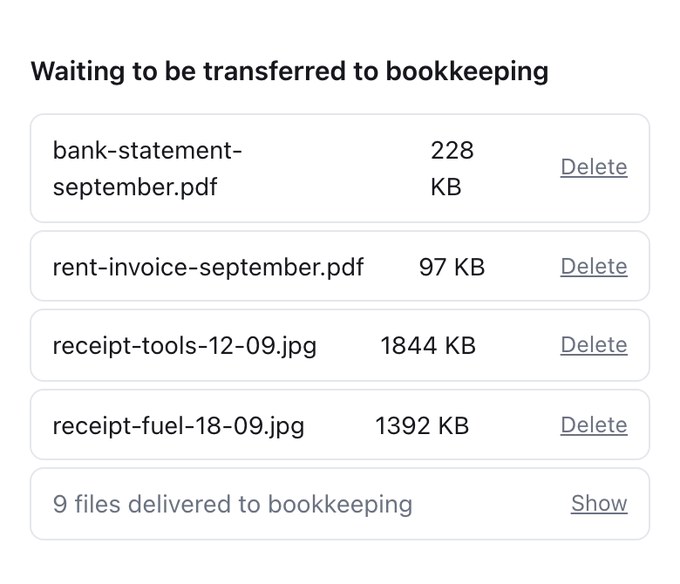
- The files you have sent appear under Waiting to be transferred to bookkeeping. Until they are transferred, you can delete a wrong file with Delete.
Nothing else is needed. Receipts, invoices, bank statements and contracts are fine as they are: AI sorts them, and your accountant checks anything that needs judgement. One file can be up to 25 MB.
The list at the top shows what your accountant is asking for this month. Completed items turn green.
Data security: Do not send medical certificates, sick leave certificates, diagnoses, tax cards, trade union information, debt enforcement decisions or payroll information to the portal.
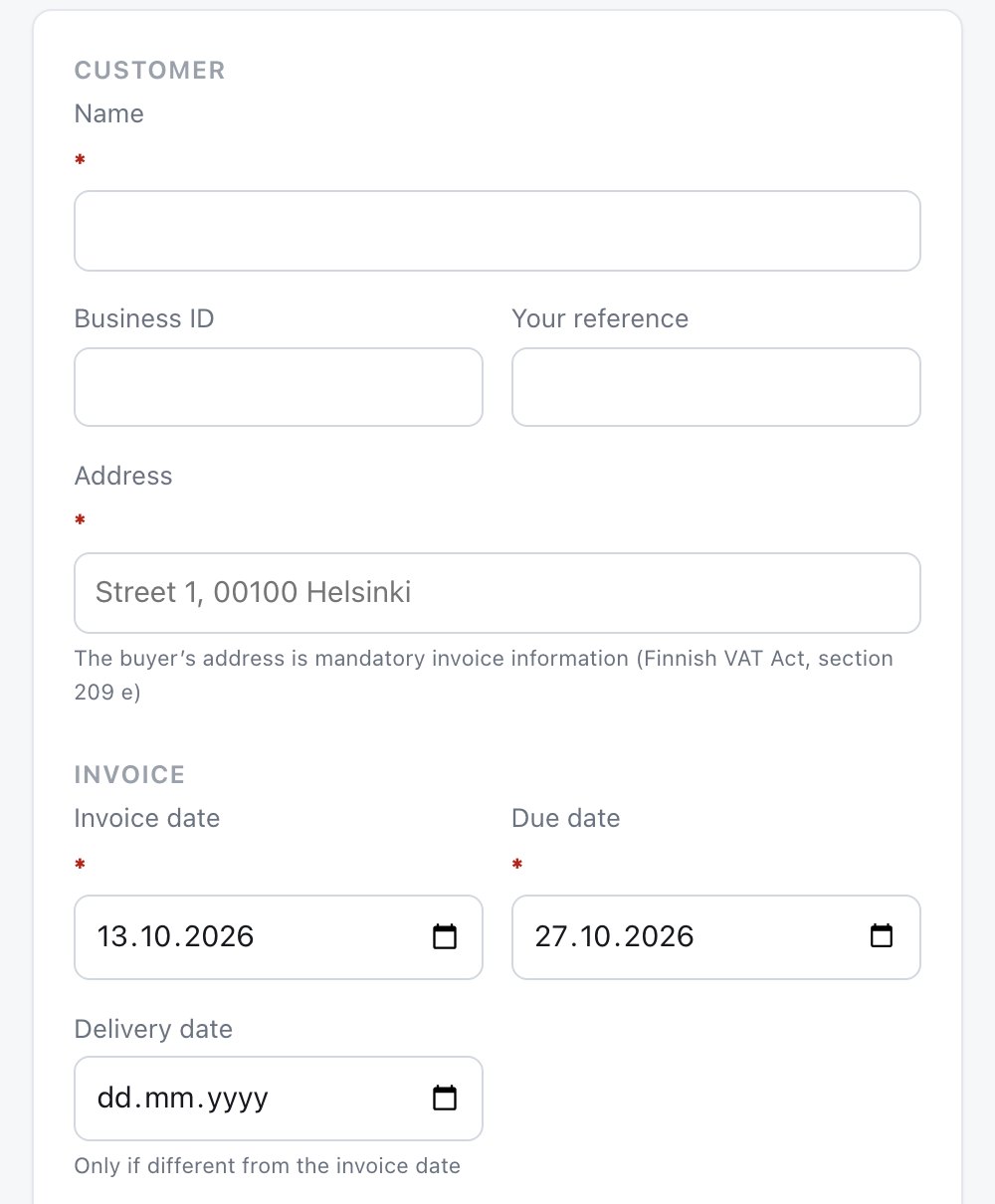
A sales invoice with one form.
- Open Create and send invoice. Fill in the customer's name and address, the dates and at least one line. The portal calculates the totals and the VAT for you.
- Choose the VAT treatment for each line. If your prices include VAT, for example when you sell to consumers, choose Unit prices include VAT.
- Press Save invoice. The invoice goes to your bookkeeping, which gives it an invoice number. After that, you can download the invoice as a PDF.
Under E-invoicing, you can add the customer's e-invoice address and operator ID, or an email address. For foreign trade, you enter the country, the VAT number and the currency.
Until the invoice is in your bookkeeping, you can still cancel it. If your company's bank account number is missing, the portal asks for it first.
Even easier with your own agent.
An AI agent is AI that does tasks for you. Using your own agent makes bookkeeping even easier: when the agent delivers your documents to your bookkeeping, you don't even need to log in.
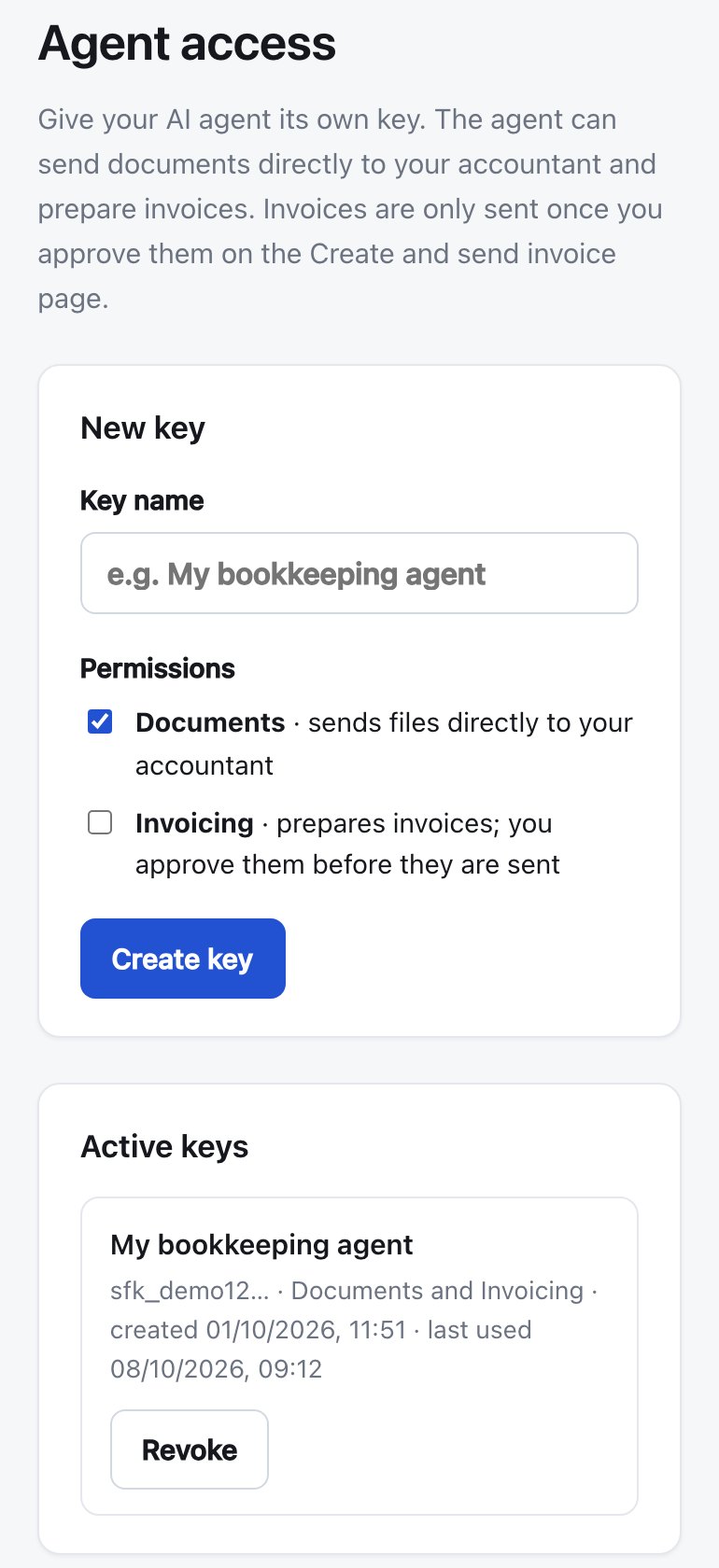
You create a key once on the Agent access page: give the key a name and choose its permissions.
- Documents: the agent sends files directly to your accountant.
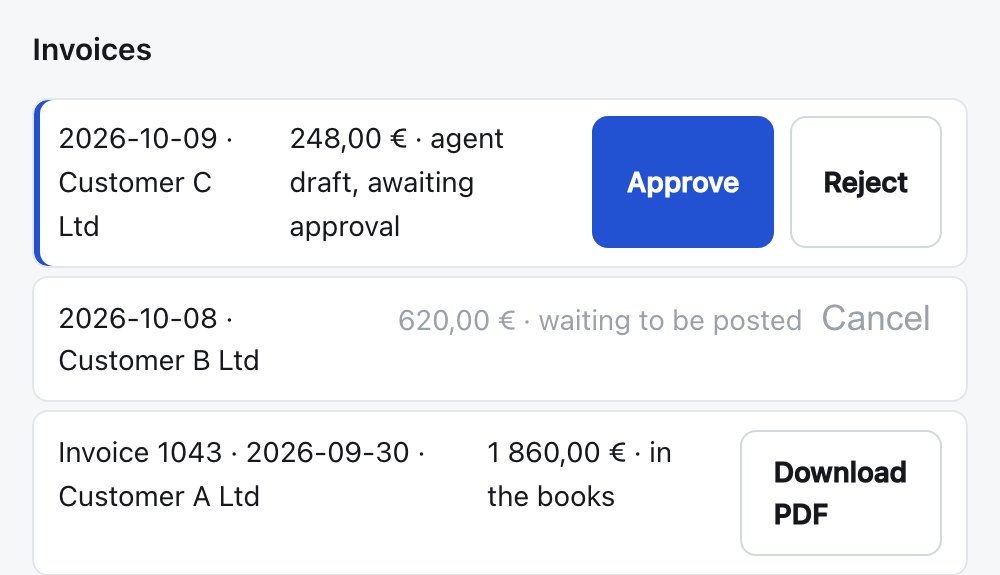
- Invoicing: the agent prepares invoices. An invoice waits on the invoice list until you approve it, and only an approved invoice goes into your bookkeeping.
The key is shown only once. At that moment, copy the ready-made instructions for your agent, which include the key. You can turn the key off at any time with Revoke.
Questions about the portal?
Call or write, and we'll help you get started. You can write to us in English.
Log in to the document portal →